.png?width=150&height=61&name=explori_logo%20(1).png)
Transforming raw data into actionable strategy has never been faster. Explori’s AI-powered summaries analyse your survey results in real-time, comparing them against historical data and industry benchmarks to give you an instant narrative of your event's performance.
When will this be available?
AI summaries will be automatically enabled for all clients and surveys on 2 March 2026.
If you would prefer to opt out of automatic enablement, or have specific questions about how Explori handles your data using AI, please contact your Explori account manager.
See our AI Summaries in action...
Follow this simple guide to start using AI insights today.
1. Access the AI Assistant
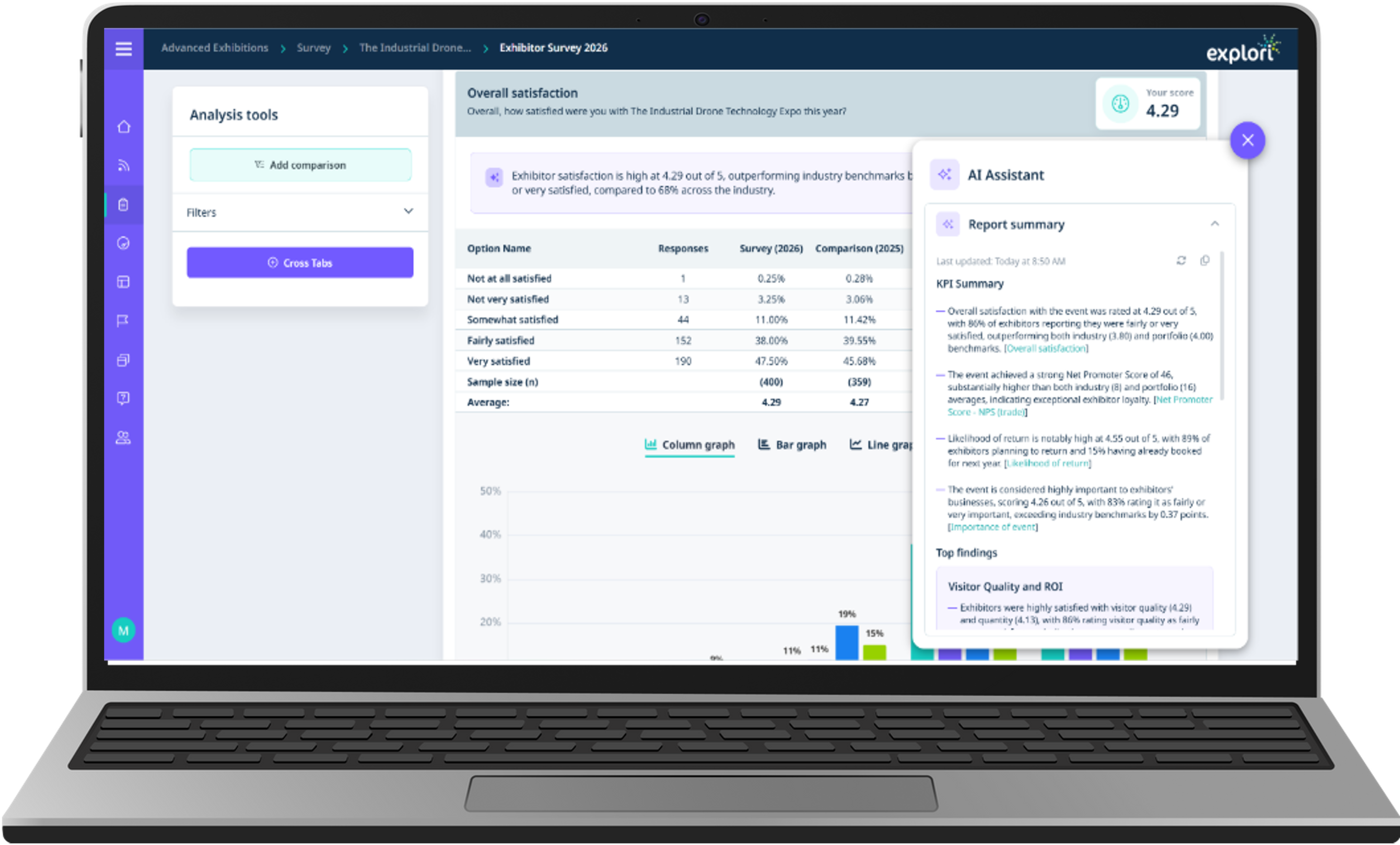
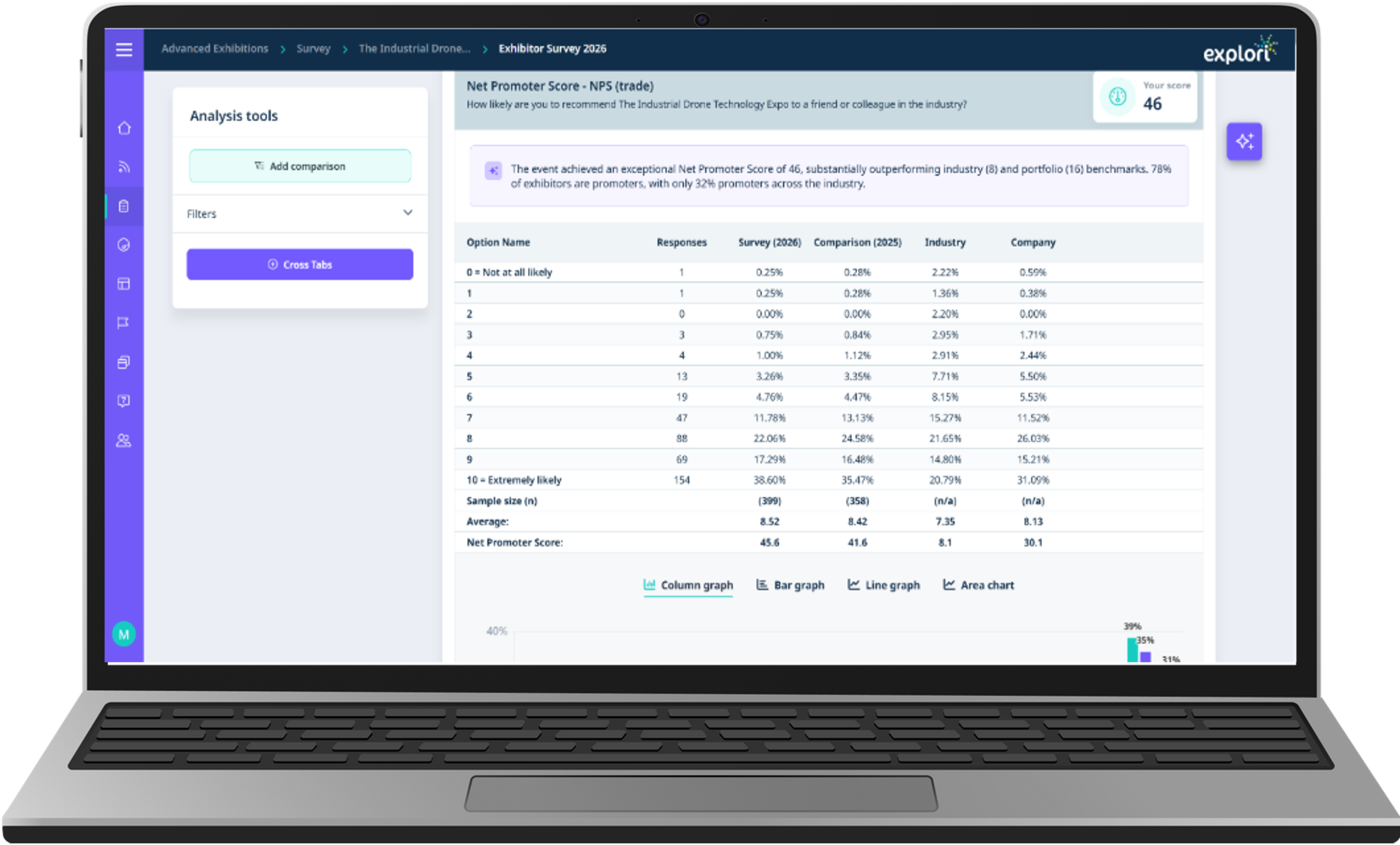
When you are in the reporting page for any survey, look for the AI Assistant icon (sparkle icon) located on the right-hand side of the page
- Select the icon to open the AI assistant
Don't see the AI Assistant on your survey?
Explori Lite - The AI assistant is not available to surveys with an Explori Lite license.
Explori Pro - Firstly, make sure this feature is enabled via the survey settings page. If you do not see the toggle to enable or disable AI summaries in your survey, this feature is disabled for your account. Please contact your Explori Account Manager to have this feature enabled for your organisation.
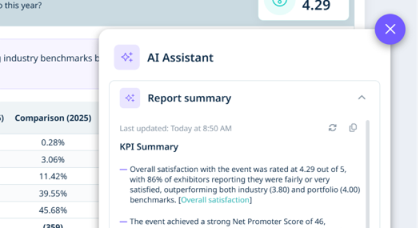
- Here you can view the overall survey summary, providing a KPI or high-level summary, Top Findings and Recommendations.
- At the top of each question section, a respective short summary gives you specific detail on what you are looking at.
2. Summaries regenerate for real-time accuracy
- While your survey is live and collecting responses, your summary will automatically regenerate each time you navigate to the reports page and meaningful data changes have occurred (each 10 responses)
- As new responses come through, you can manually regenerate summaries by clicking the refresh icon () to prompt the AI to re-analyse the latest dataset
- When you decide to close your survey, your summary will automatically regenerate, ensuring your final AI summary is up to date and ready to share with stakeholders (Only regenerates if new responses have been received to prevent unnecessary change).
N.B. Daily rate limits apply to ensure fair usage
3. Navigate Directly to the Data
The AI doesn’t just give you a summary; it connects you directly to the evidence.
- Within the AI summary text, you will see hyperlinked question titles in teal (e.g. [Overall satisfaction] or [Net Promoter Score]).
- Clicking these links will automatically scroll your main dashboard to the specific chart or data table associated with that insight, allowing you to perform a deeper dive instantly.
4. Share Insights with Your Team
Found a perfect summary for your post-show report or an email to stakeholders?
- Click the Copy icon () at the top right of the AI Assistant panel.
- This copies the entire summary to your clipboard, formatted and ready to be pasted into slide decks, emails, or internal documents.